PasteNotch: a native Mac clipboard workflow in three steps
Find copied text, links, images and files from your Mac’s notch, keep projects organized, and choose optional Cloud tools.
Disclosure: I’m the maker of PasteNotch, a native Mac clipboard manager I maintain as a side project. This post explains its current workflow and the difference between the one-time app purchase and optional PasteNotch Cloud.
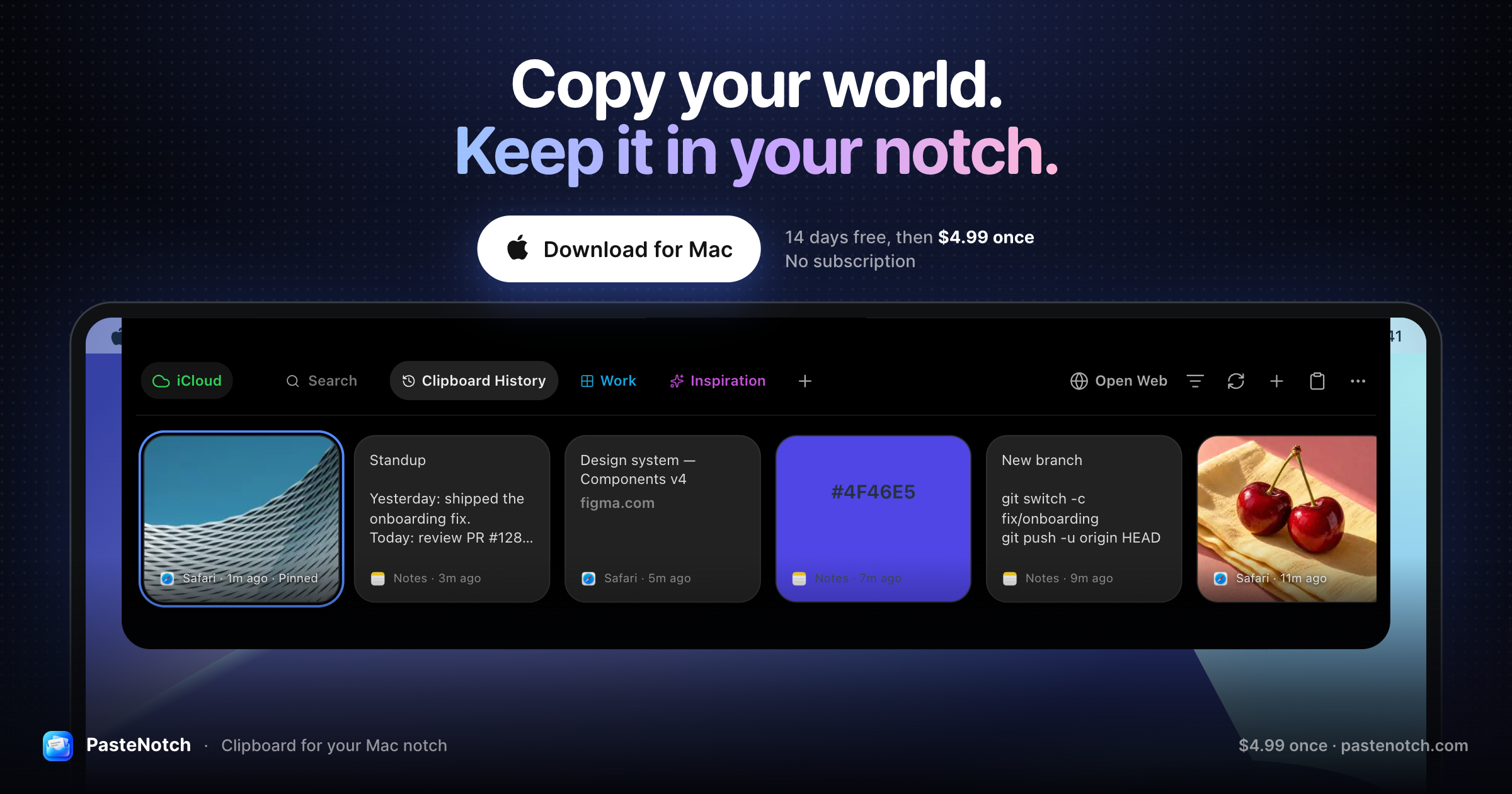
Copying is quick. Finding an earlier copy can be slower: a paragraph gets replaced by a URL, a reference image disappears behind another window, or the file you need is buried in a folder. Clipboard history helps you return to that material without rebuilding the path that led to it.
A clipboard workflow in three steps
Copy as usual. Keep working in your usual apps. PasteNotch records copied text, links, images and files in a searchable history. You can collect reference material while writing, designing, researching or working with code.
Open and find. Press ⇧⌘V or open PasteNotch from the notch or menu bar. Search your history for the item you need. The interface works on Macs with or without a hardware notch.
Reuse and organize. Bring an earlier clip back into your work, pin material you use repeatedly, and group related clips into project Pages. A Page can keep a project’s reference links and copied material together while the general history continues to collect new items.
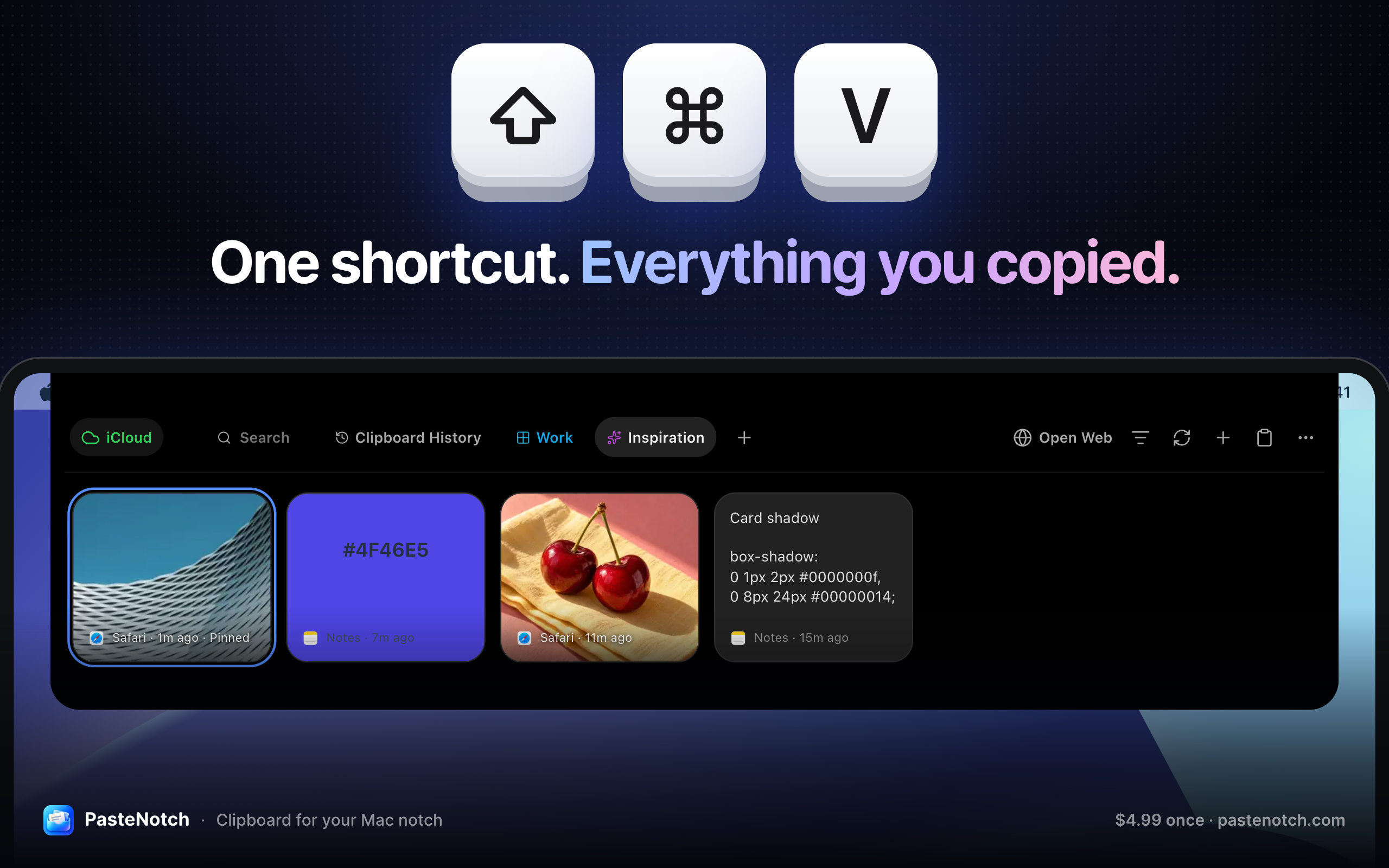
Open your clipboard history from the notch, menu bar or ⇧⌘V.
Native UI, local clipboard storage
The Mac app uses Swift and SwiftUI for its native interface. Its clipboard monitor reads NSPasteboard changes, and SwiftData stores the library locally. You can open and search your local history offline; retrieving a saved local clip does not require fetching it from a web service.
Signing in does not automatically upload that library. Eligible clip and Page sync is a separate choice. That distinction matters when clipboard history includes work in progress: keeping the history on your Mac and choosing a connected library are explicit parts of the product.
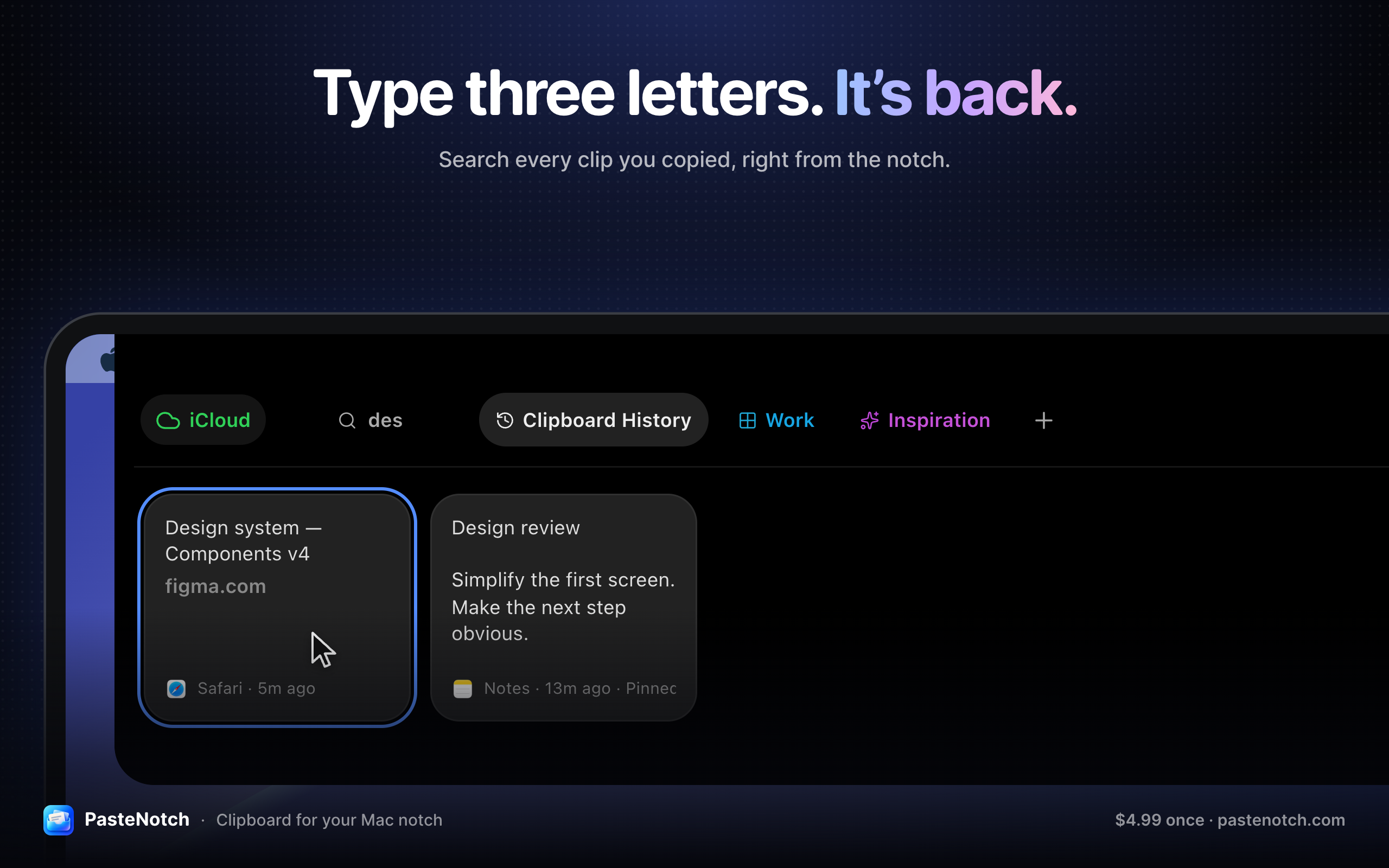
Search earlier clips and keep frequently used material pinned.
What optional Cloud adds
PasteNotch Cloud adds a web library, bookmarks, share links, separately enabled clip and Page sync, and 25 GB of storage. For new customers, it also unlocks screenshots, area OCR, screen recording and Screenshot Studio. These capture and editing tools belong to the optional Cloud plan.
OCR itself runs on the device. The current Mac implementation uses Apple’s Vision framework for text recognition, with bundled Tesseract as a fallback if Vision fails. An image does not need to be uploaded for that recognition step.
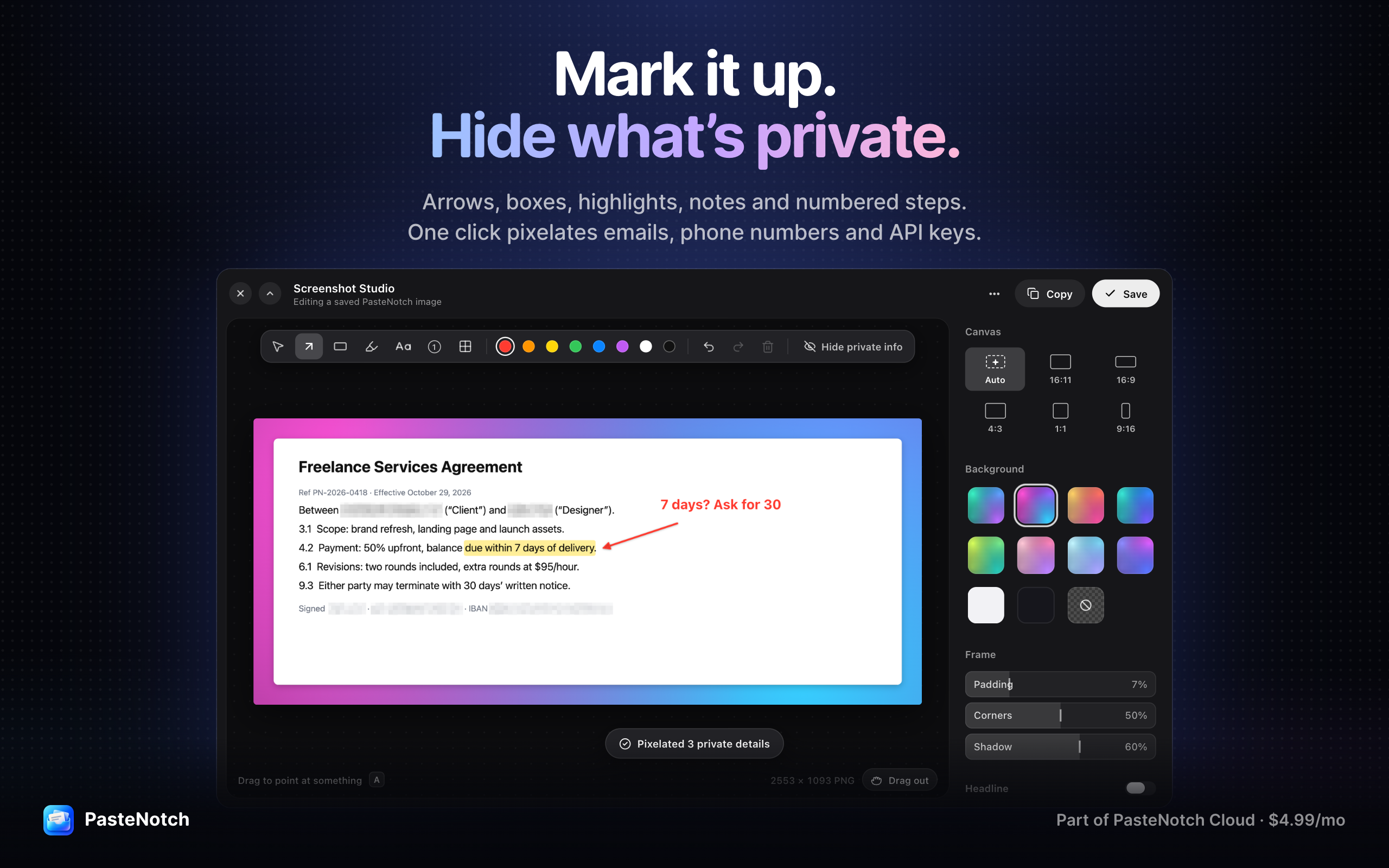
Screenshot Studio and capture tools are included with optional PasteNotch Cloud.
Requirements, trial and pricing
PasteNotch requires macOS 14 Sonoma or later and supports Apple Silicon and Intel Macs. A free Google or email sign-in starts the 14-day trial. After the trial, the Mac app costs USD $4.99 once for unlimited clipboard history.
Optional PasteNotch Cloud costs USD $4.99/month, includes the Mac app and provides the 25 GB Cloud offering described above. The one-time purchase remains the core Mac clipboard option; people who want the connected library and capture tools can choose Cloud.
This 40-second demo shows the interface and clipboard workflow:
https://www.youtube.com/watch?v=Wi2PJHKcDLE
You can explore the current product and download the Mac app at https://pastenotch.com/download. Cloud features and pricing are explained at https://pastenotch.com/cloud.
About the author
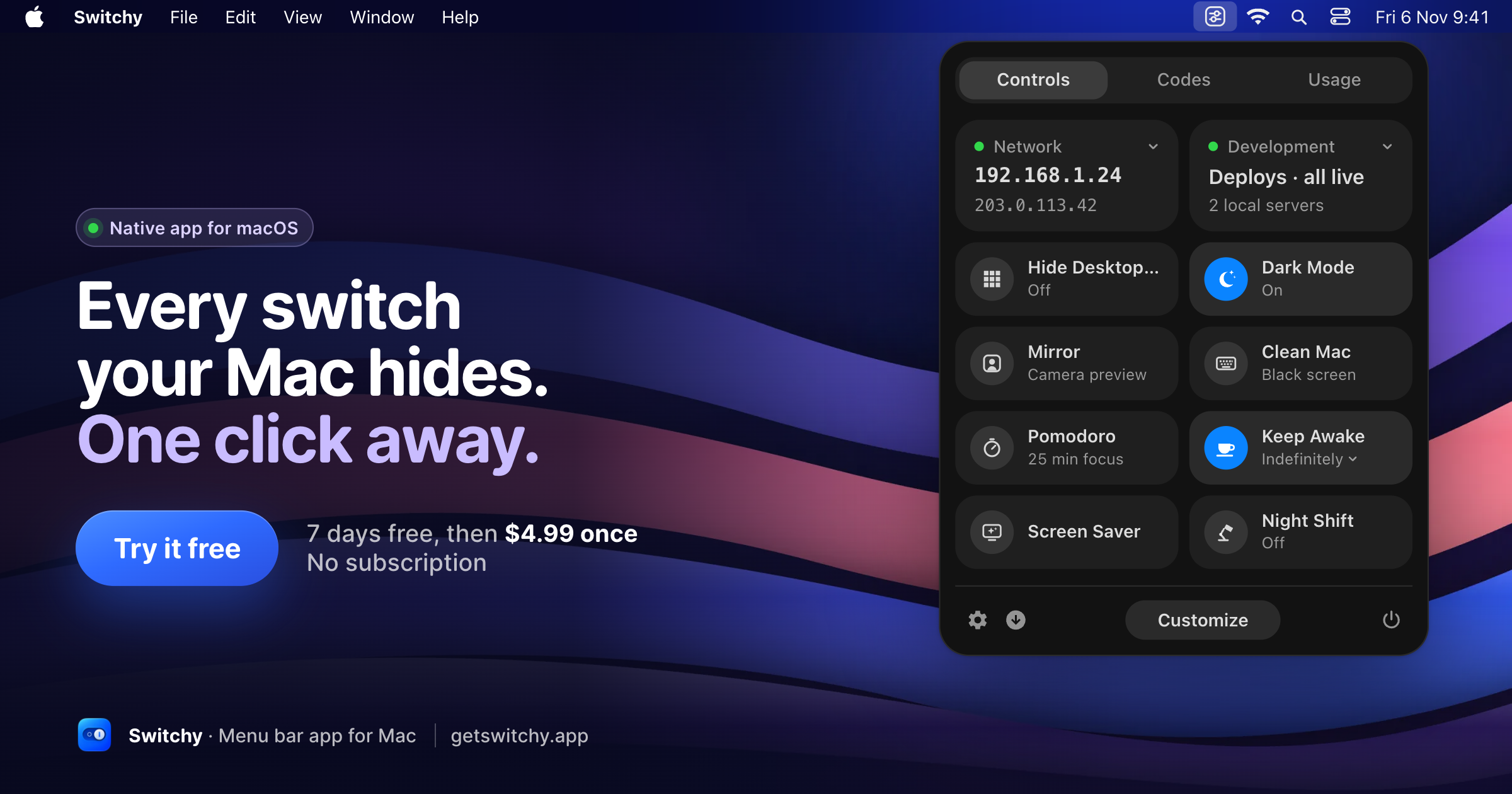
- Building apps for Mac and the web. Switchy brings everyday Mac controls, 2FA codes and developer status into one menu bar app: https://getswitchy.app
Comments
Join the discussionNo comments yet. Be the first to comment.